
Tuning a screen for where it runs
A screen you built in the workspace has room to breathe. The same screen published into an FSA record tab has a few hundred vertical pixels and a technician who wants an answer. Screen Settings is where you say what each of those two surfaces shows — and the embedded one already has an opinion before you touch it.
- 1
Two columns, one screen
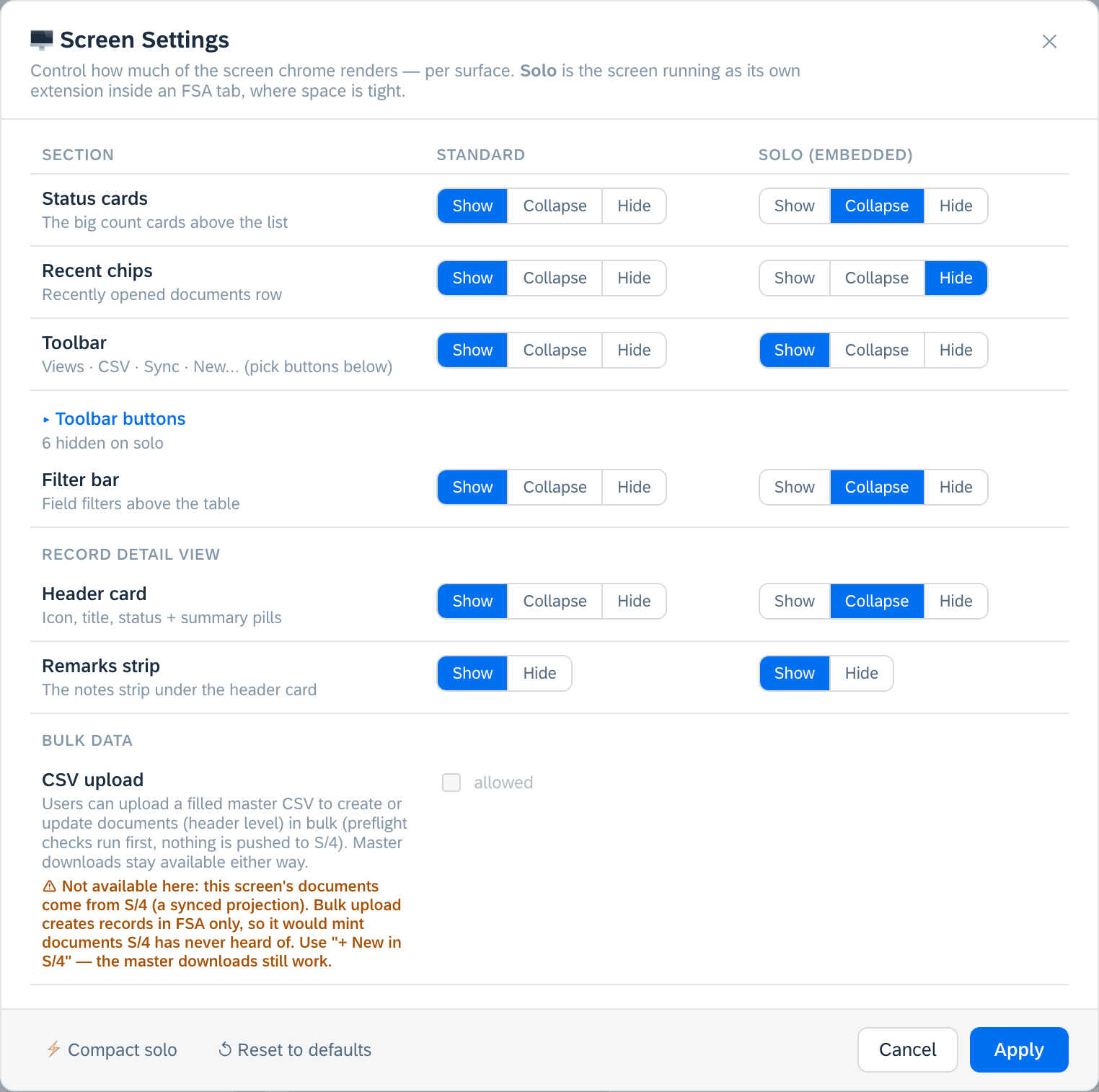
The dialog lists every piece of furniture around your data, with a choice for the standard surface and a separate choice for solo — the screen running as its own extension inside an FSA tab. One design, two presentations, no second screen to keep in step.
- 2
Three states, not a switch
Most sections can be shown, collapsed or hidden — a few, where collapsing a single strip would mean nothing, are simply on or off. Collapsed is the state that earns its keep: the filter bar or the status cards stay one click away behind their own header, costing a line instead of a block. Reach for hidden when the answer is “never here”, and collapsed when it is “usually not”.
- 3
Then pick the toolbar down to the button
While the toolbar itself is shown, its individual actions can be dropped per surface — saved views, prefills, CSV, batch actions, compare, sync, create. An embedded screen that offers three buttons instead of nine is not a lesser screen; it is the same screen with the questions nobody asks in a record tab taken off the table.
- 4
Start from the compact preset
You rarely need to fill this in. A published screen already starts compact — the recents row gone, the cards, filter bar and driver row collapsed, the secondary toolbar actions dropped so that sync and create survive. One action applies that preset deliberately, and another puts everything back to defaults.
- 5
Decide whether this screen takes bulk uploads
Bulk CSV upload is off until somebody turns it on, per screen, here. Where it cannot apply, the dialog says so in a sentence and names what to use instead, rather than greying a checkbox and leaving you to guess.
- 6
And which AI tools it offers
The same dialog carries this screen's AI tools. It is the narrowest layer of three — the engine decides what is possible, the tenant decides what is on, and a screen can only take tools away from its own users.
Worth knowing
Back to the designer.