
Altiwerk Studio
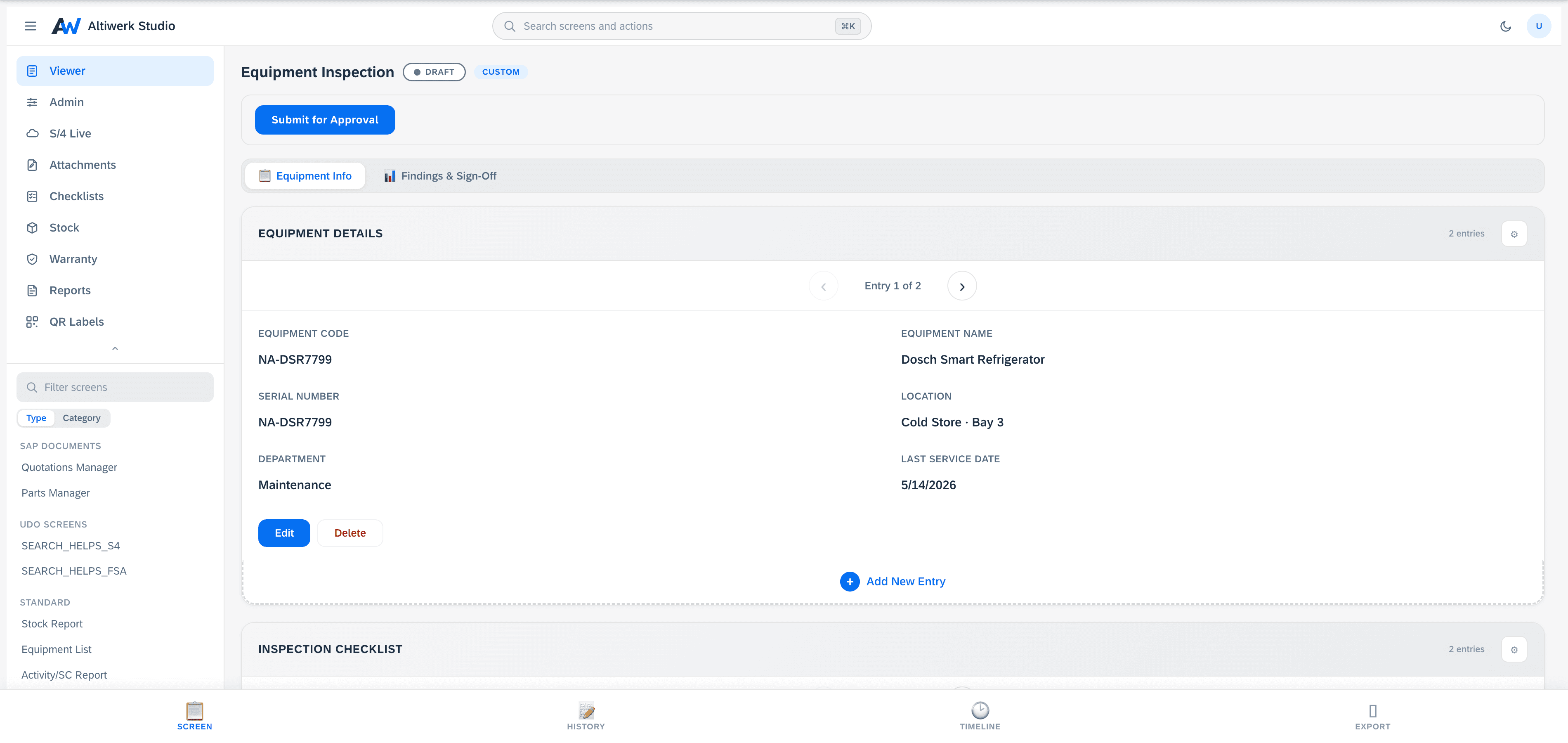
Four screen types, designed by your own people, running inside FSA next to everything else. No code, no deployment cycle, and no consulting round for the next small thing your team needs. It runs inside the SAP Field Service and Asset Management Shell (formerly SAP FSM), next to everything your team already uses.
Pick the shape your problem already has
One install, four types. Your licence decides which appear — the ones you did not buy are simply not there.
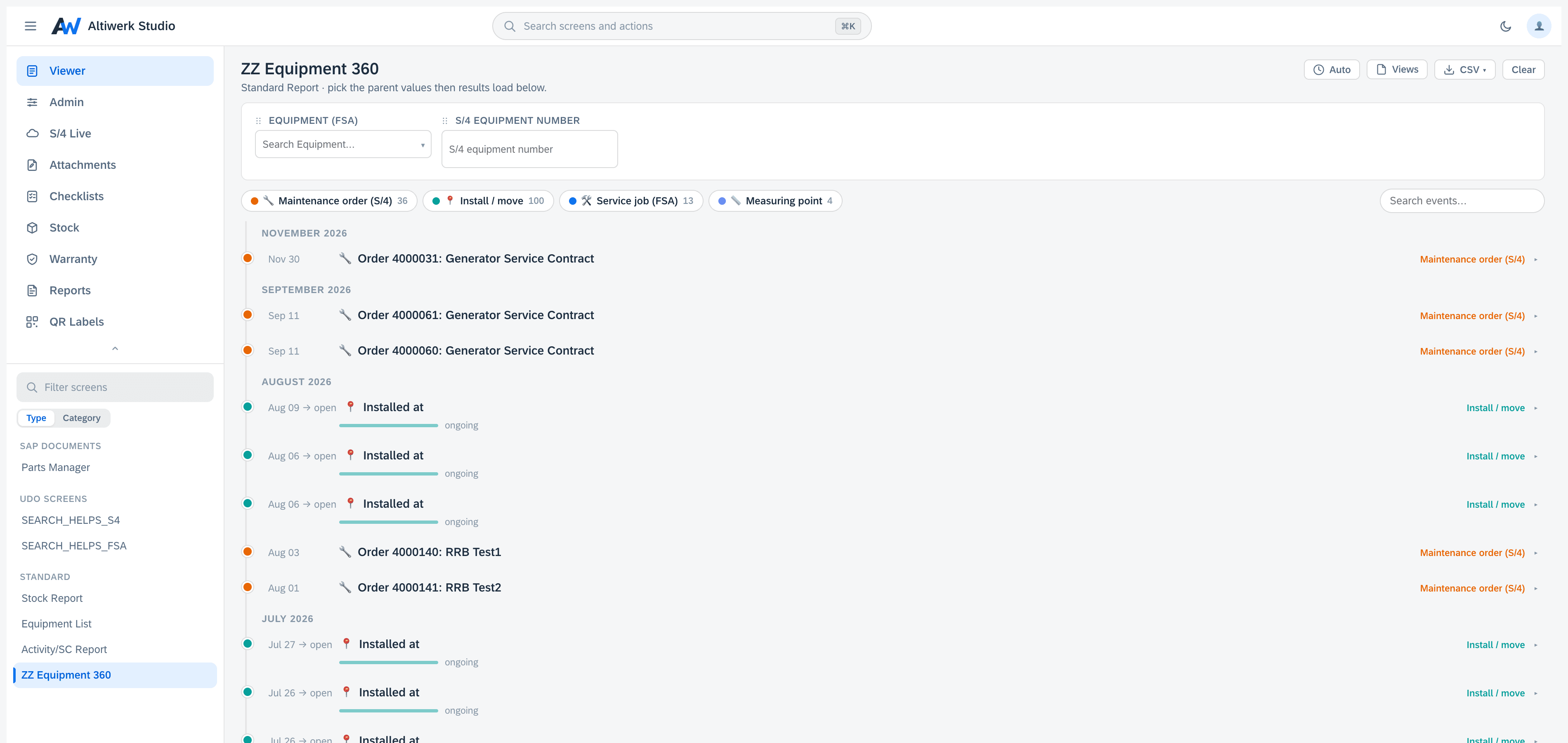
Standard reports
Standard reportsA filter bar and the tables it drives — across FSA, your UDOs, and live S/4.
Answering a recurring question with parameters, where the answer spans more than one object.
12 capabilitiesUDO screens
UDO screensYour user-defined objects, with a real UI and two-way S/4 sync.
Data that lives in FSA as a user-defined object and needs more than the admin console gives you.
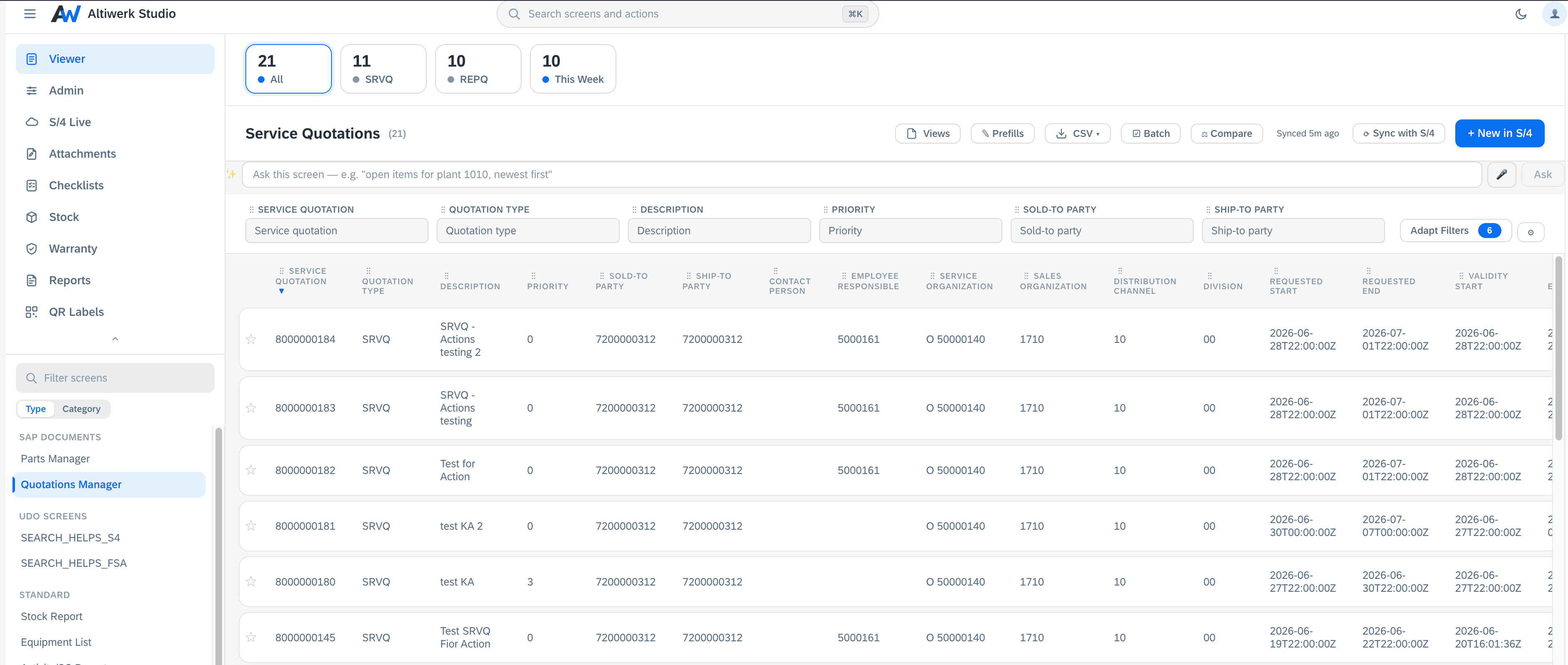
11 capabilitiesSAP document screens
SAP document screensHeader, items and sub-items — the shape a real business document has.
Anything quotation-shaped: a header with lines, optionally mirroring an S/4 document.
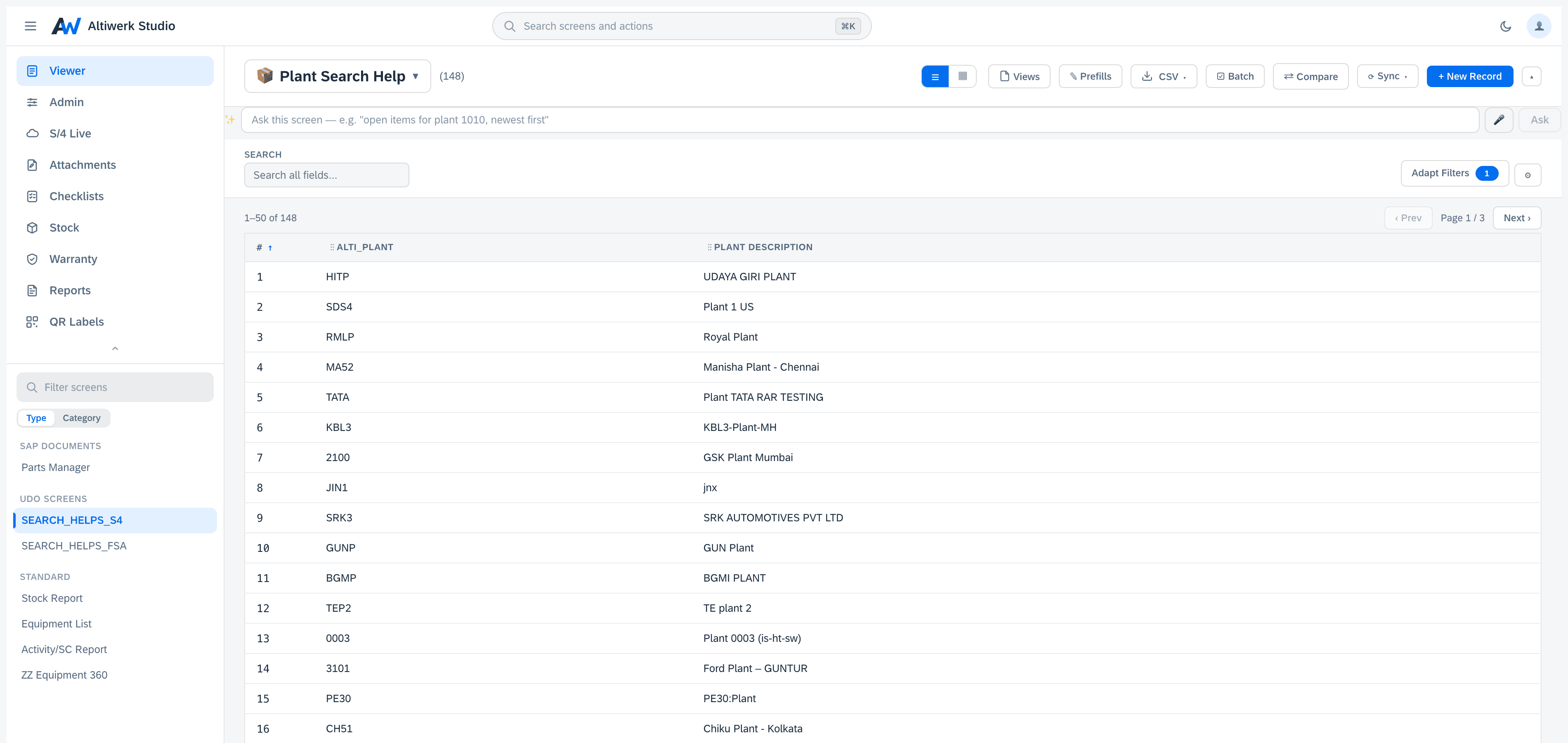
8 capabilitiesCustom screens
Custom screensA blank canvas, when none of the other three is the right shape.
A form that is entirely yours, stored as records without you designing storage.
4 capabilities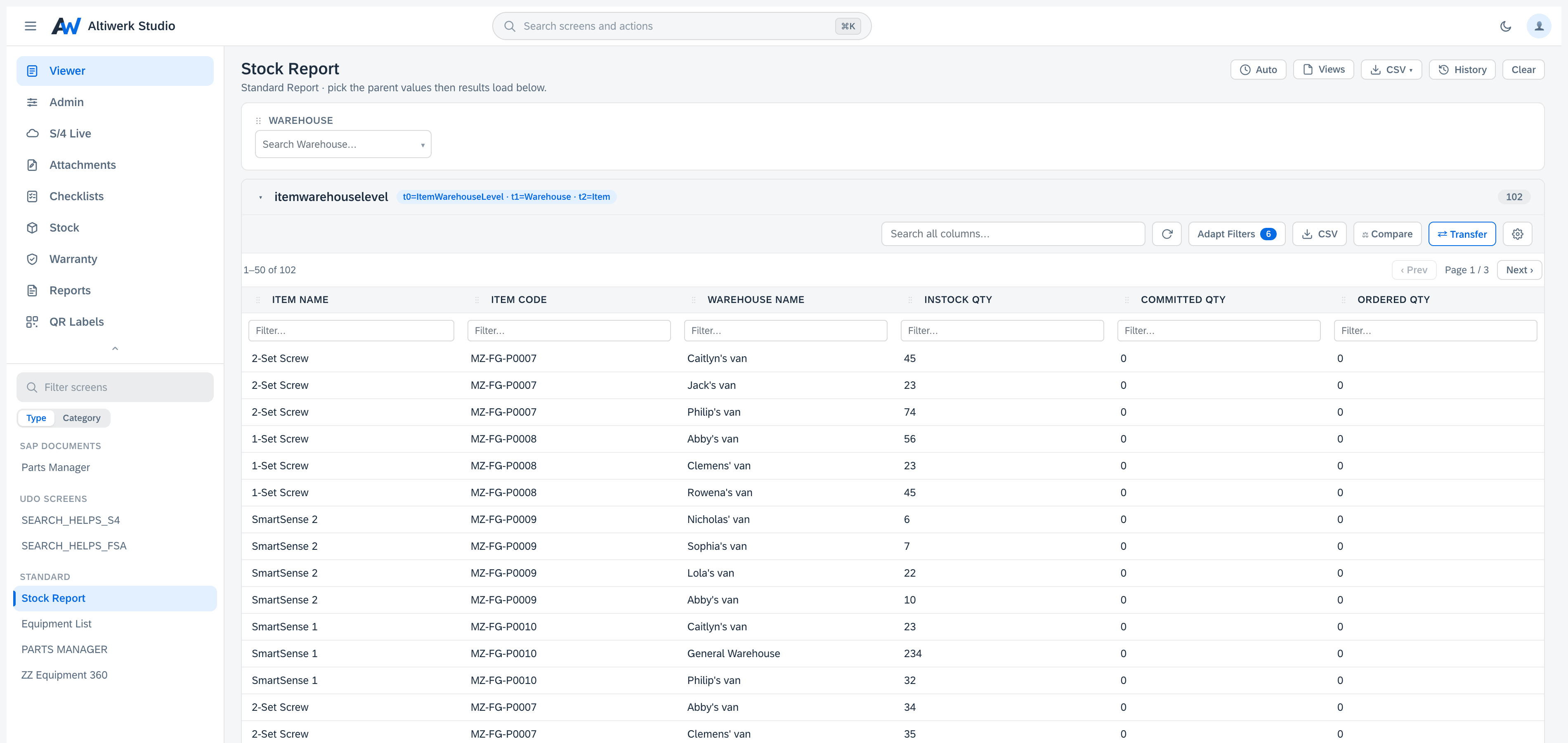
What every screen inherits
Designing
A designer, not a code editor
Sections, pages and fields, each required, hidden, read-only or defaulted — configured by an admin, not deployed by a developer.
Rules instead of a rulebook
A field can show, hide, require or lock itself based on what somebody put in another field. The rule is a sentence you assemble — when this, then that — so the form guides people through it rather than a training document doing the work.
Caught at the keyboard, not at the write
Ranges, lengths, a pattern with your own error message, and checks that compare one field against another — all applied as somebody types. For fields bound to S/4, S/4's own validation still has the final say; this just stops the trip being wasted.
One field, three surfaces
The create form, the edit form and the viewer can each show a different set of fields, so what somebody fills in once is not what they stare at forever. Fields can also carry a default, or compute themselves from their siblings.
Search help across everything
Pick a record from an FSA object, a UDO or an S/4 value list, with partial matching done on the server so three letters is enough.
Bind any field to S/4
One field, fetched live, formatted, and with its value help scoped to the context it sits in.
Start from a verified mapping
A template gallery of starter screens, plus saved S/4 mapping templates you can reuse across screens.
Check the screen before your users do
Deterministic checks find broken bindings and missing fields; the AI layer proposes the repair.
Names are guarded at the moment you type them
FSA has no rename and no clean delete for a user-defined object, so a duplicate name is blocked and a shadowing field name warns — while changing your mind is still free.
Operating
Restrict who sees the designer
The workspace can be limited to chosen FSA policy groups or roles, so end users get screens and admins get the builder.
Downloads that reach the disk
An extension runs in a sandboxed frame that blocks downloads outright. Every export here routes around it, so the file actually arrives — a detail nobody notices until it is missing.
Looks like SAP built it
The Fiori Horizon design system, in light and dark, adapting from a full page down to a narrow record tab.
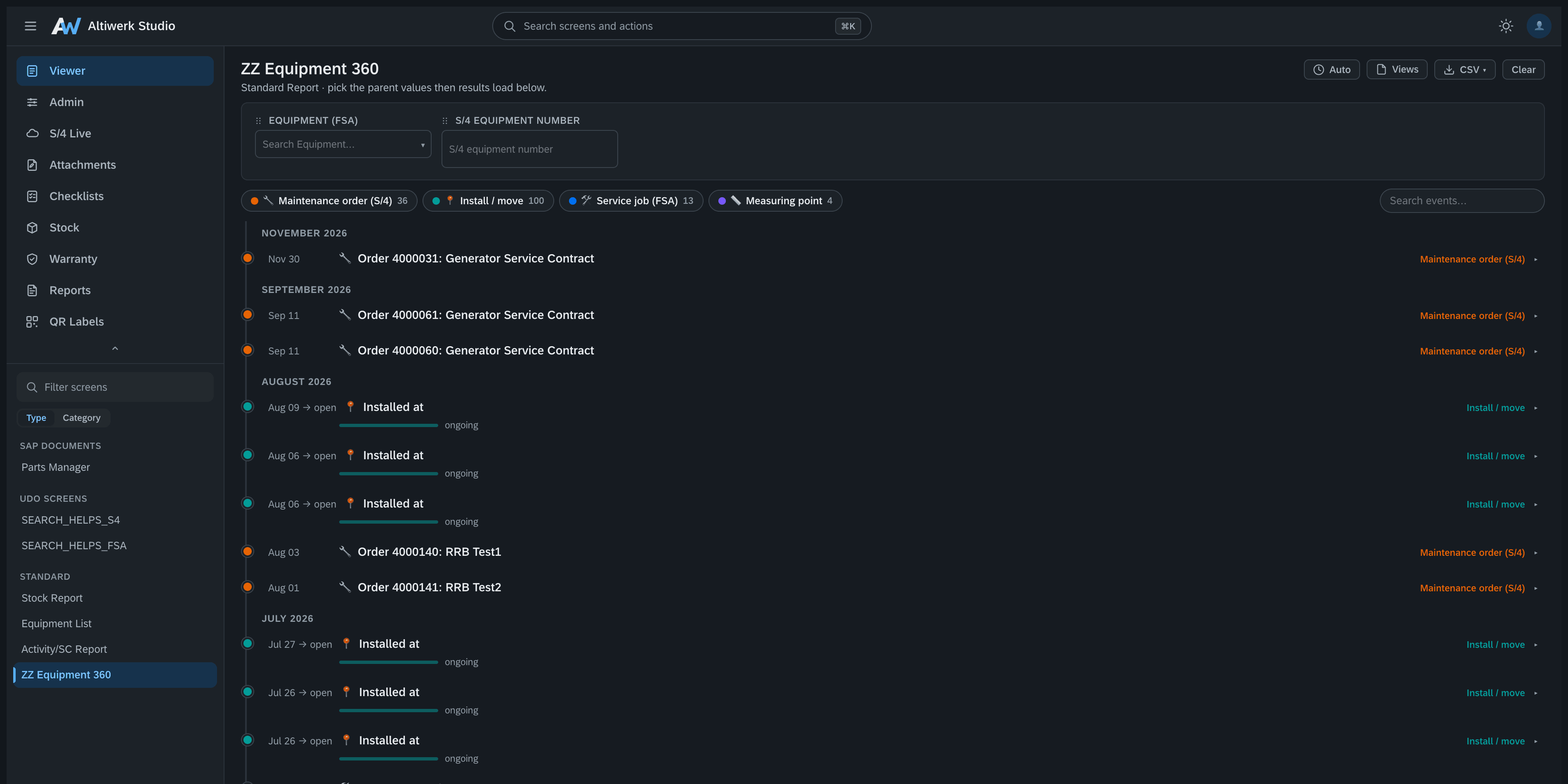
Move a whole configuration between tenants
Export every screen design to one file and import it into another company. A read-only preflight shows collisions, renames, missing object references and S/4 dependencies before anything is written, then a progress panel names each step as it runs. The file carries the definitions of the objects your screens read, so the restore can create what the target company is missing.
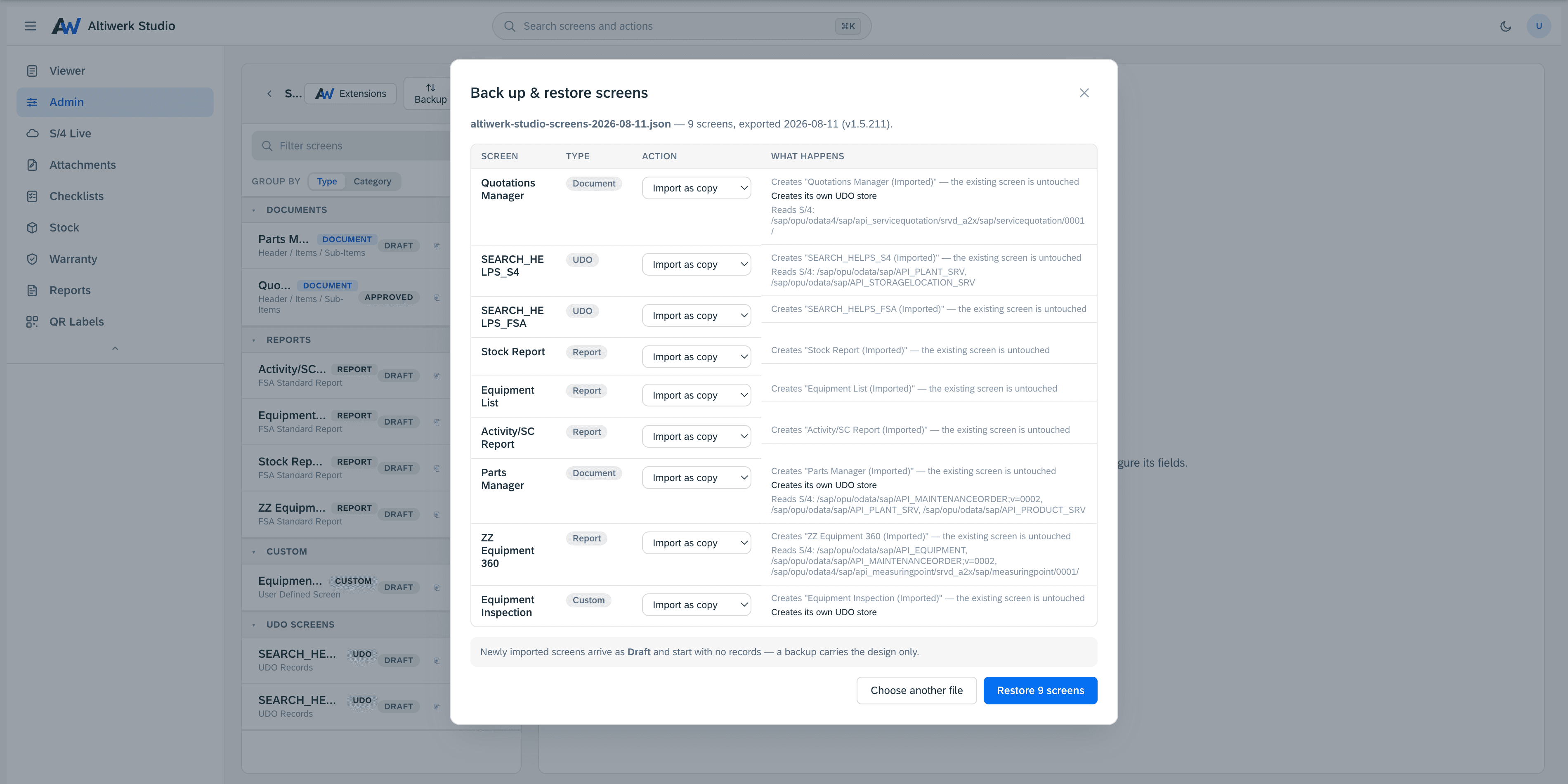
The same screen, sized for where it runs
A screen has two lives: the full one in the workspace, and the cramped one inside an FSA record tab. Every piece of furniture around the data — cards, filter bar, toolbar, the buttons on it — is set independently for each, and each can be shown, collapsed or removed rather than merely switched off. Published screens start compact on their own, so this is the dial you reach for when you disagree with the default, not a form you have to fill in.
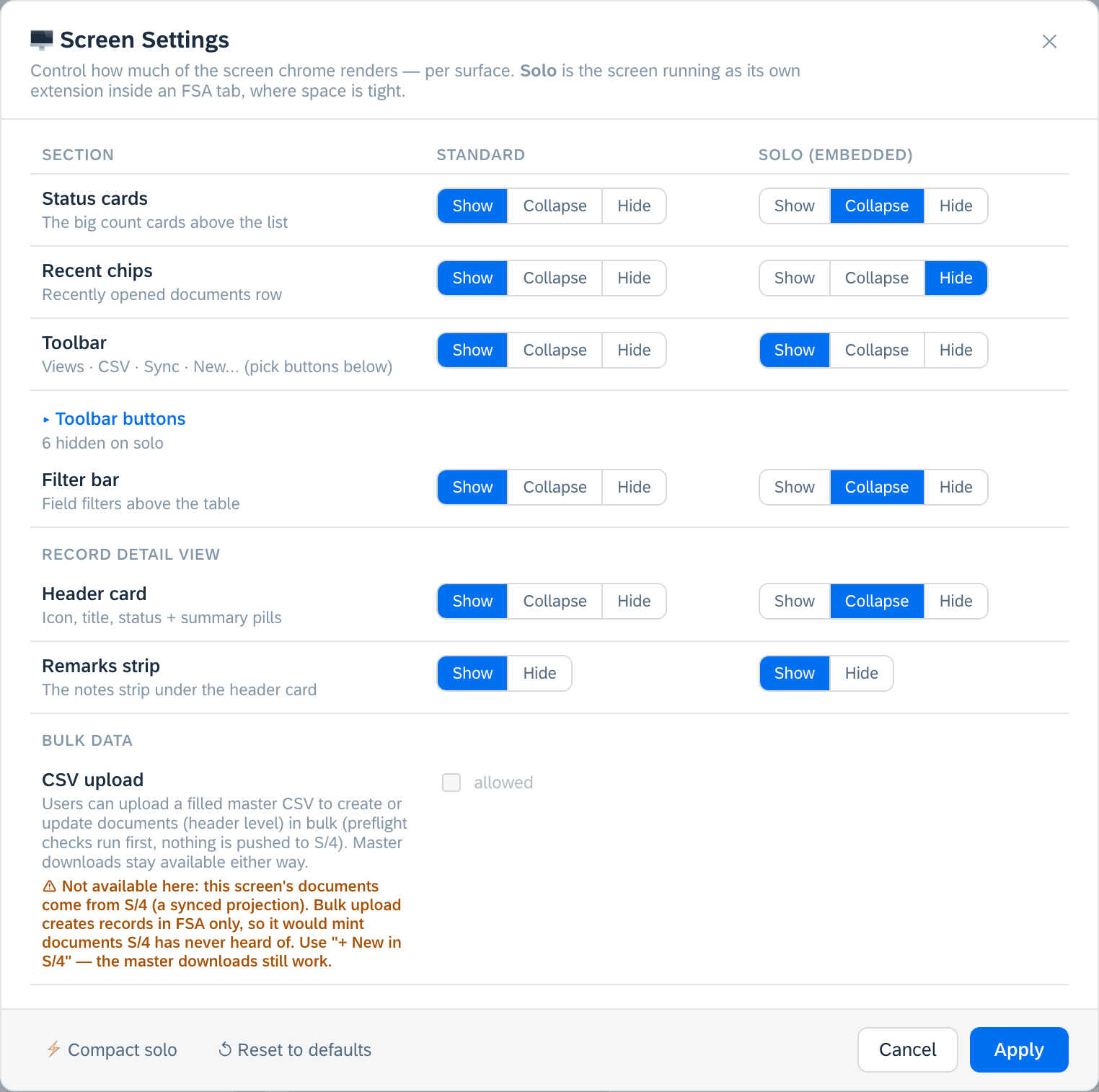
Built by your power users, not us
The Admin tab lets your team create and configure screens directly in FSA. Pick a type, name it, set its status. No consulting engagement, no deployment cycle — your power users ship to your field users.
It is hidden for users whose role does not grant access, so end users only ever see the screens.
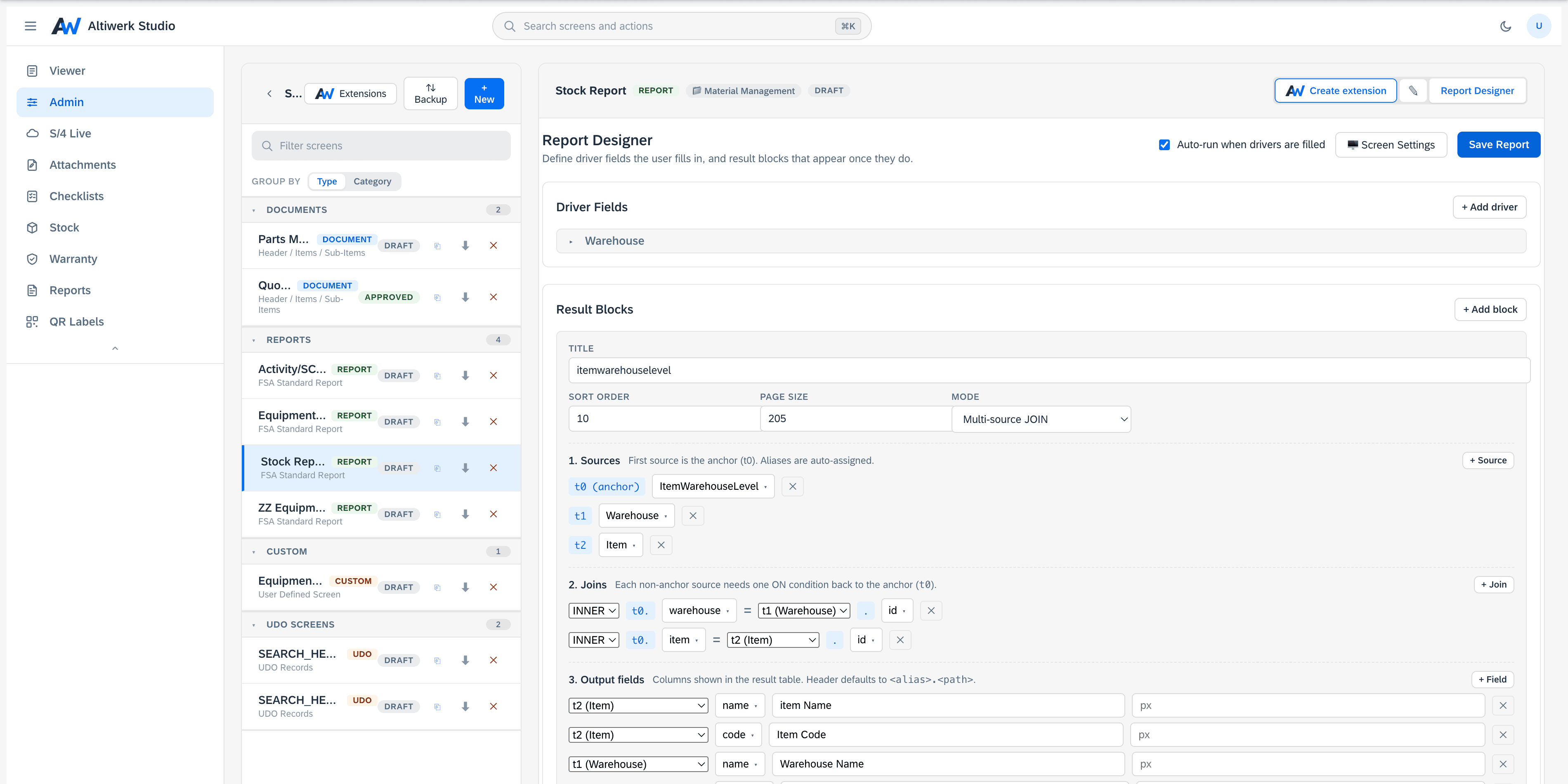
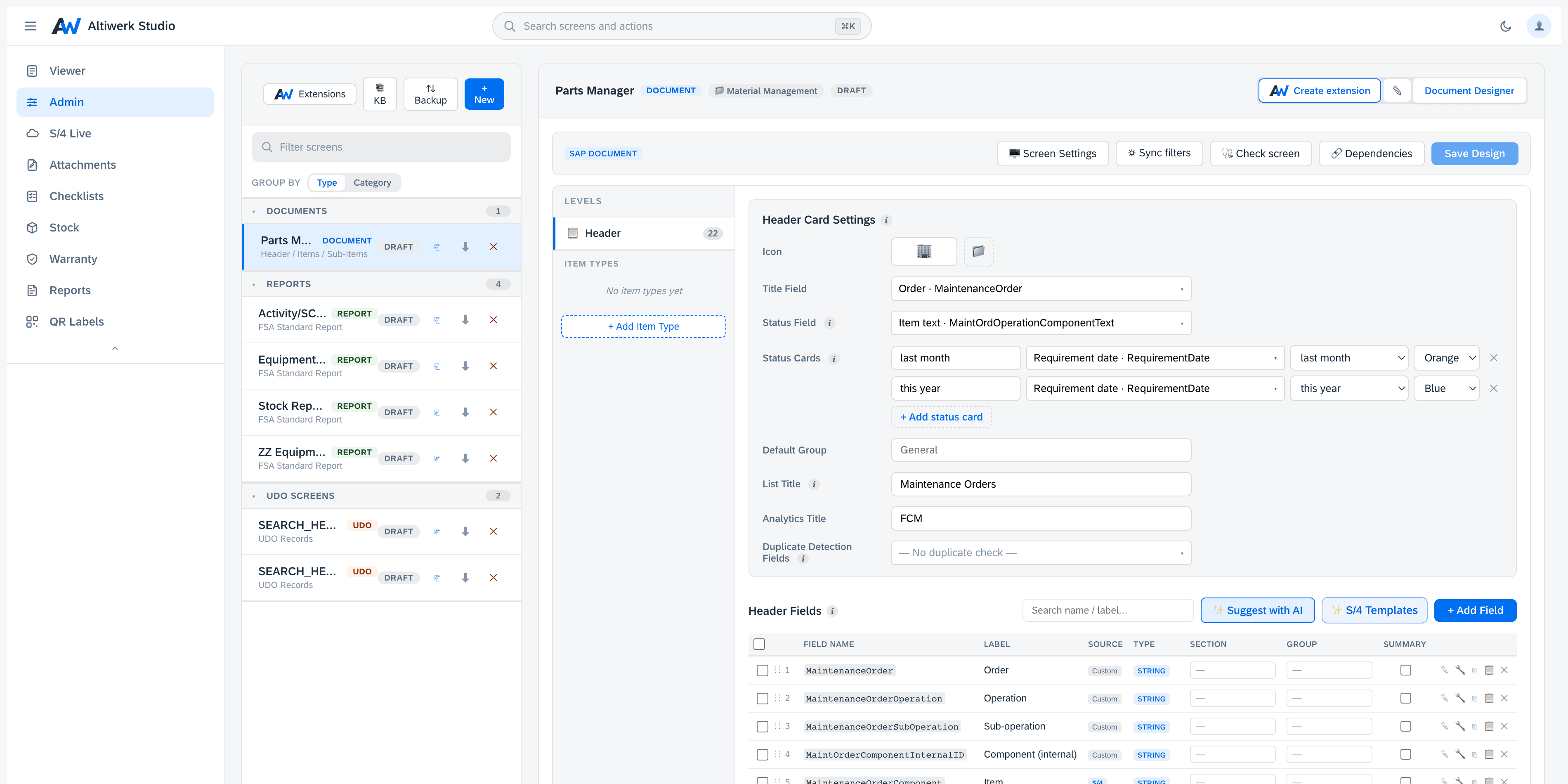
A screen your team built can become its own extension
A screen your team built is useful. A screen that appears on the equipment page, for the people who never open the studio, is a product. The factory turns one into the other — one click, one link, no second deployment.
Extension Factory- ·One deployment, signed per-extension manifests — never a deployment per screen.
- ·Short install URLs, and 18 places a screen can appear — the Shell home screen among them.
- ·The screen picks up the record it is hosted on with no configuration.
- ·Expand into a full Shell modal from a small outlet.
Six AI tools, off until you turn them on
None of them is required, and the one people reach for most answers from a curated knowledge base before it ever calls a model.
Ask this screen
EveryoneType what you want in your own words — “open orders in Hamburg from last month, newest first” — and the screen filters and sorts itself. What it did is shown as chips you can undo, English or German, and relative dates resolve against today.
Explain this error
EveryoneSAP errors are famously opaque. This answers from a curated knowledge base first — a verified answer, no model call — and only falls back to AI when the base has nothing. Most answers therefore work with no AI enabled at all.
What is this field?
EveryoneAn explanation of any field, built from its metadata. No record data is sent.
Screen-building copilot
AdminsProposes a mapping from your system's own metadata, so the first draft of a screen is not a blank page.
Generate a template
AdminsDrafts a new S/4 mapping template from a description of what you need.
Screen doctor
AdminsSuggests repairs on top of the deterministic checks, which always remain available.
How it is governed
- ·The engine decides whether AI is available at all, and which models may be used.
- ·The tenant turns individual tools on or off for everyone, and can pin a model per tool.
- ·Each screen can switch off the tools its users should not have.
- ·Nothing a screen enables can widen what the tenant or the engine allowed.
- ·Usage is counted per tool — calls, tokens and estimated cost — so spend is visible rather than discovered.
Pricing
Annual, per tenant — quoted on requestSingle
One screen type
- ✓Choose Standard, UDO, or SAP
- ✓Unlimited screens within type
- ✓Per-tenant license
- ✓Email support
Dual
Any two screen types
- ✓Mix any two of Standard, UDO, SAP
- ✓Unlimited screens within types
- ✓Per-tenant license
- ✓Email support
Complete
All screen types incl. Custom
- ✓Standard + UDO + SAP + Custom
- ✓Bespoke layouts (Custom screens)
- ✓Per-tenant license
- ✓Priority email support
Entitlements at a glance
Which screen types each tier enables.
| Screen type | Single | Dual | Complete |
|---|---|---|---|
| Standard reports | Optional | Optional | ✓ |
| UDO screens | Optional | Optional | ✓ |
| SAP document screens | Optional | Optional | ✓ |
| Custom screens | — | — | ✓ |
| Number of types enabled | 1 | 2 | 4 |
Optional = your choice at purchase time. Single picks one of Standard / UDO / SAP; Dual picks any two.
Pricing FAQ
Common questions about how purchasing works.
Ready to try Altiwerk Studio?
14-day trial license bound to your tenant. No credit card. No auto-bill.