EasyScreenViewer
Design and run custom data screens directly inside FSM Shell. Standard reports, UDO viewers, SAP Document viewers, and fully custom screens — built by your power users, gated by your license.
What's in ESV
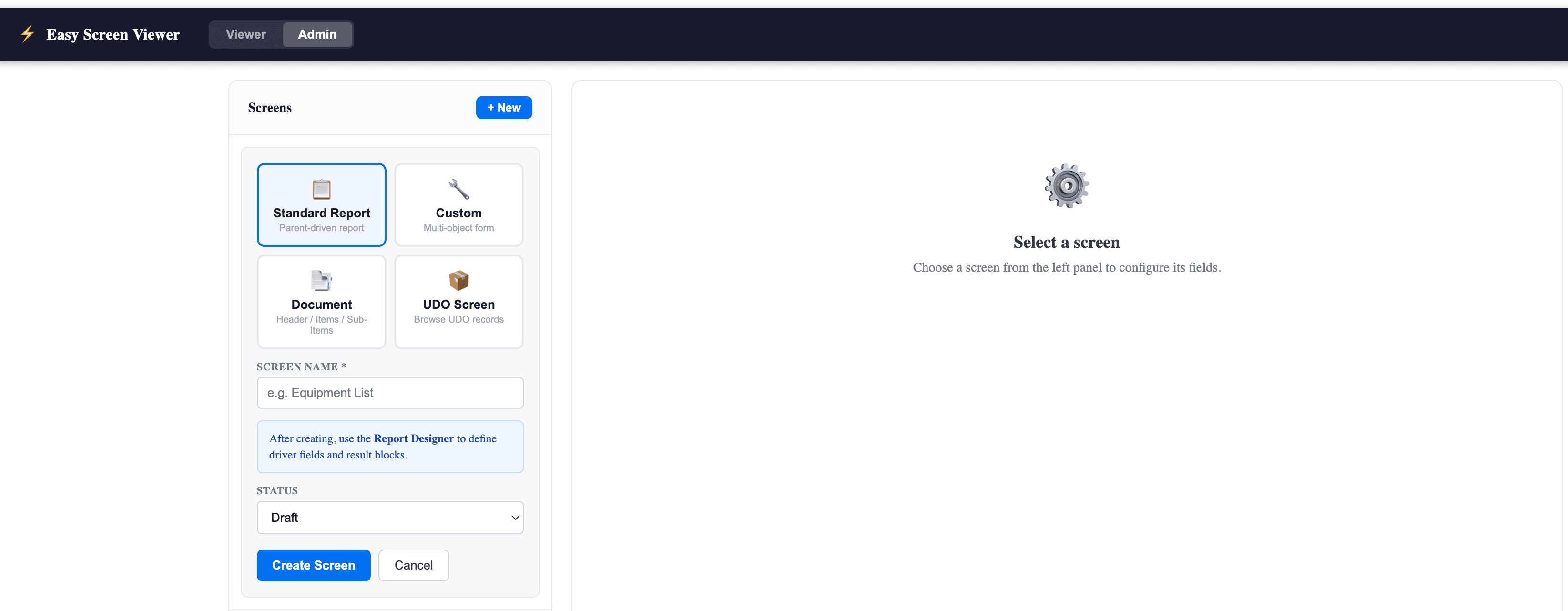
Four screen types, one install. Each one runs inside FSM Shell next to your usual tools.
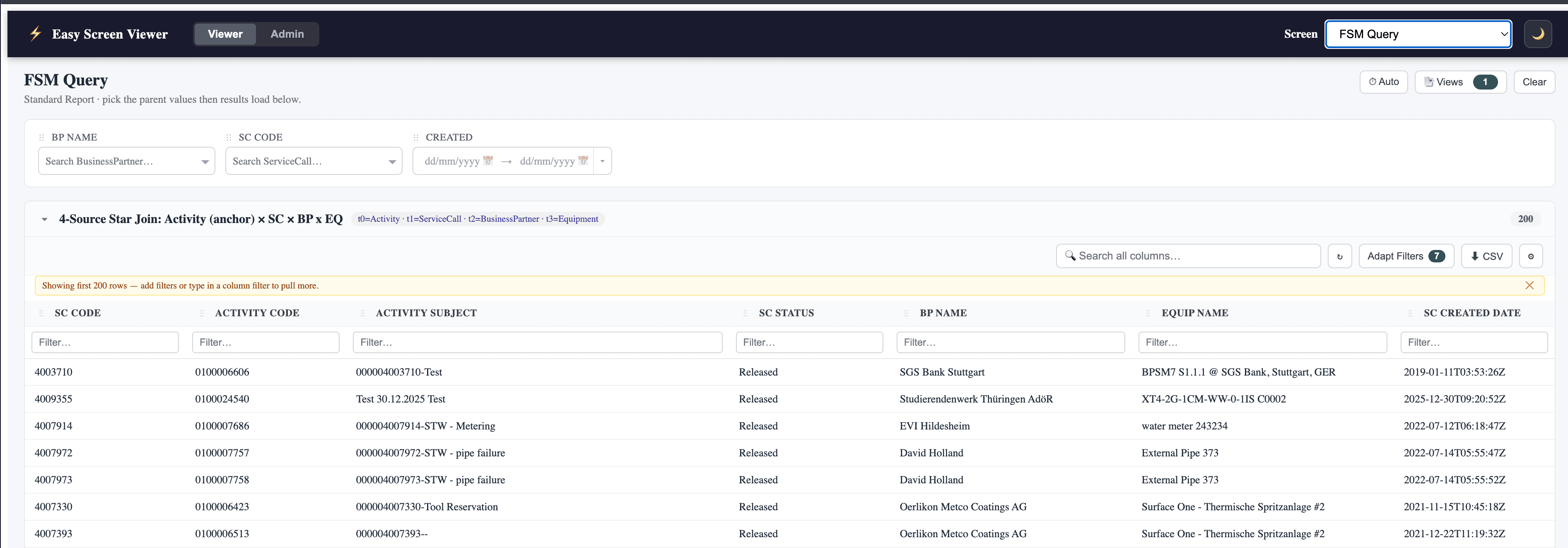
Standard reports
Query any FSM object with column filters, multi-source joins, and saved layouts. Server-side fuzzy search across primary and extra display fields, with auto-discovery of DTO versions — your reports keep working when SAP bumps an object.
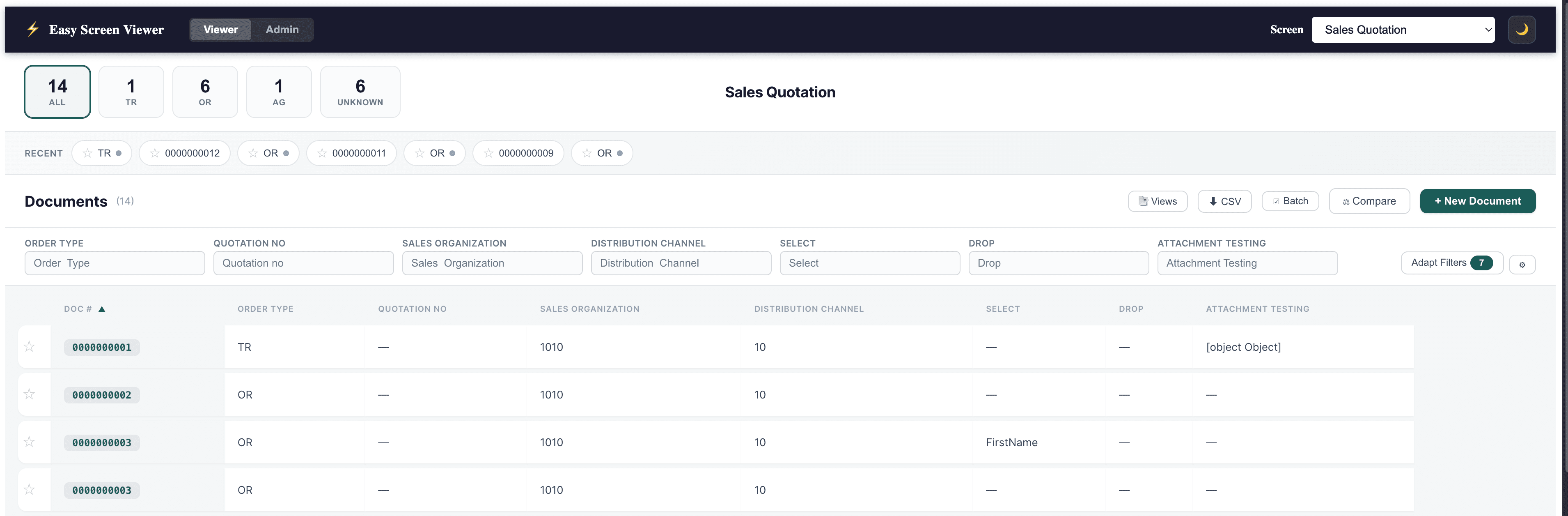
SAP Document viewer
Browse ERP documents (orders, invoices, quotations) alongside service data, without leaving FSM Shell. Status tabs, recent-document chips, and side-by-side compare for the documents you work with every day.
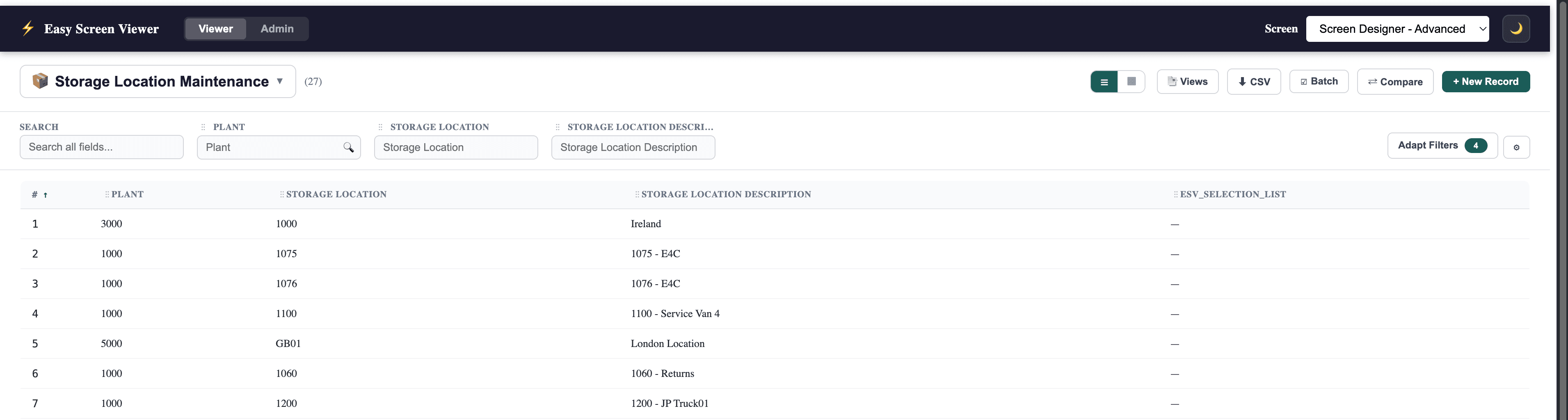
UDO viewers
Expose user-defined objects in your tenant as first-class screens with their own column choices, filters, and sort order. Great for surfacing custom business records to field technicians.
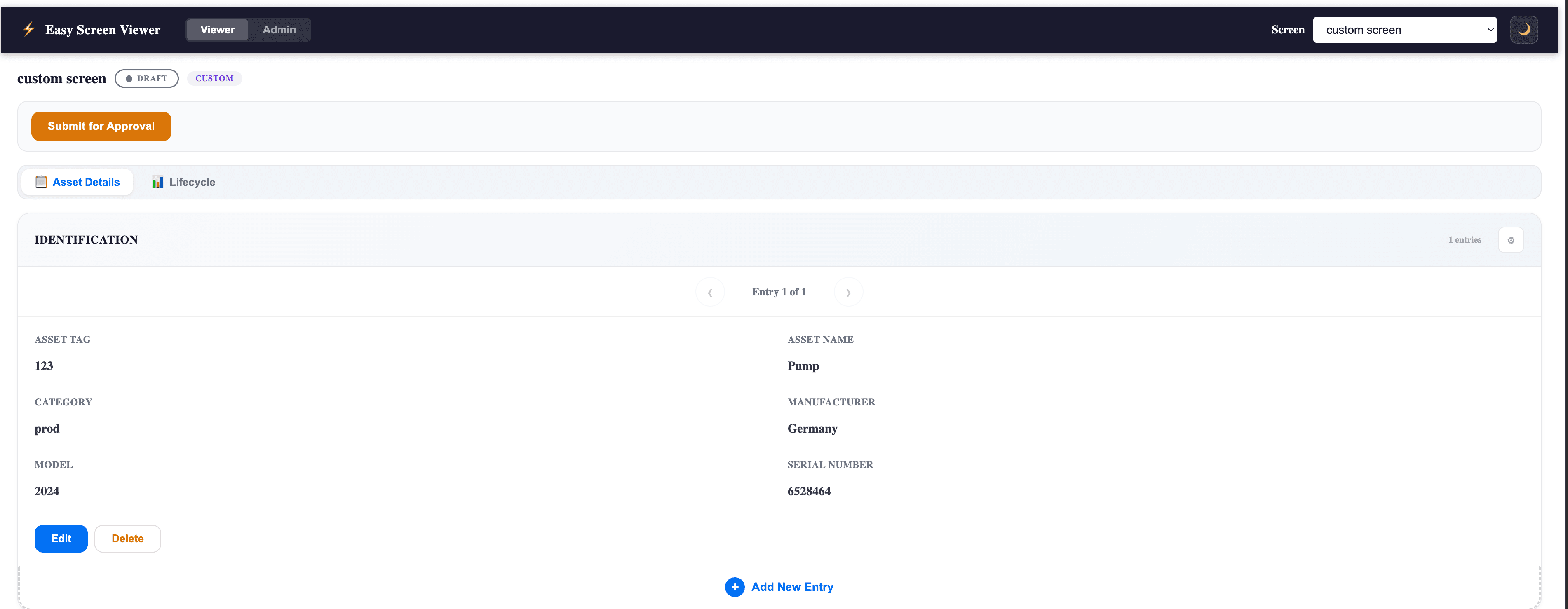
Custom screens
Fully bespoke layouts for the cases templates don't cover. Asset detail pages, multi-tab inspectors, approval workflows — all driven by your data. Available on the Complete SKU.
Built by your power users, not us
The Admin tab lets your team create and configure screens directly in FSM. Pick a type, name it, set its status. No consulting engagement, no deployment cycle — your power users ship to your field users.
The Admin tab is hidden for users whose role doesn't grant access, so end users only see what they need.
Three roles, one extension
Service managers
- →Build cross-object reports without filing a ticket
- →Get a unified view across activities, calls, and partners
- →Share saved views with their team
FSM administrators
- →Surface UDOs as proper screens for end users
- →Spin up a SAP document viewer in minutes
- →Stop maintaining one-off iframe extensions
Power users
- →Design custom screens for niche workflows
- →Iterate on layouts without a deploy cycle
- →Hand finished screens to field technicians
Install once, gate by license
- 1
Buy a SKU
Pick Single, Dual, or Complete based on which screen types you need.
- 2
Receive your license
We email you a license key bound to your FSM tenant's accountId and a contract expiry.
- 3
Install in FSM
Paste our extension URL in FSM Admin → Extensions, paste your license key at install. Done.
Full step-by-step: install guide.
Pricing
Placeholder pricing — contact sales for a quoteSingle
One screen type
- ✓Choose Standard, UDO, or SAP
- ✓Unlimited screens within type
- ✓Per-tenant license
- ✓Email support
Dual
Any two screen types
- ✓Mix any two of Standard, UDO, SAP
- ✓Unlimited screens within types
- ✓Per-tenant license
- ✓Email support
Complete
All screen types incl. Custom
- ✓Standard + UDO + SAP + Custom
- ✓Bespoke layouts (Custom screens)
- ✓Per-tenant license
- ✓Priority email support
Entitlements at a glance
Which screen types each SKU enables.
| Screen type | Single | Dual | Complete |
|---|---|---|---|
| Standard reports | Optional | Optional | ✓ |
| UDO viewers | Optional | Optional | ✓ |
| SAP Document viewer | Optional | Optional | ✓ |
| Custom screens | — | — | ✓ |
| Number of types enabled | 1 | 2 | 4 |
opt = your choice at purchase time. Single picks one of Standard / UDO / SAP. Dual picks any two.
Pricing FAQ
Common questions about how purchasing works.
Ready to try EasyScreenViewer?
14-day trial license bound to your tenant. No credit card. No auto-bill.